Create Custom Washi Stickers with Canva Templates
Tired of searching for the perfect washi stickers that match your planner's aesthetic? That feeling of flipping through your Happy Planner or journal, wishing you had a decorative element that was just the right size, color, or pattern, is a common frustration for crafters and organizers. The solution is surprisingly simple and lies within a tool you likely already use. Enter the Canva Washi Sticker Journal Template, a game-changer for anyone who loves personalizing their planning system. This isn't just a static image file; it's an editable design asset that puts the power of custom sticker creation directly into your hands, no graphic design degree required.
Why Editable Templates Change the Sticker Game
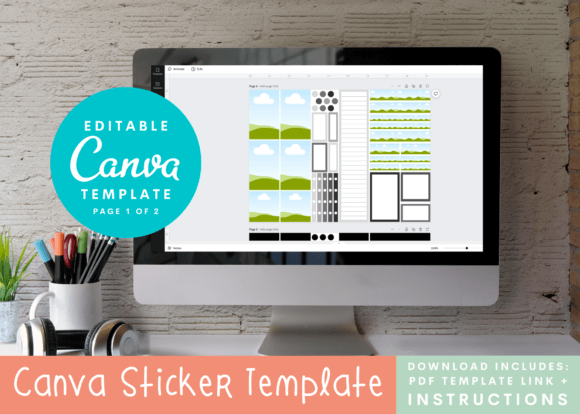
The core of this offering is a Canva template, a pre-designed framework you can fully customize. Think of it as a digital sticker sheet master. The visual style is clean and modern, with precisely measured boxes—each 1.5 inches wide—arranged for optimal use on standard printer paper. The personality is playful yet practical, designed to blend seamlessly into the aesthetic of popular vertical planner pages while being versatile enough for bullet journals, scrapbooks, or even product labeling. Its appeal lies in its perfect balance of structure and creative freedom. The structure ensures your stickers will be correctly sized for your die-cutting machine's Print & Cut feature or for easy hand-cutting, while the editable nature means you are the designer.
This approach fundamentally shifts the dynamic from consumer to creator. You are no longer limited to pre-made designs that almost, but not quite, fit your vision. Instead, you leverage Canva's vast library of graphics, fonts, and colors to build a sticker sheet that is uniquely yours. Need a set of motivational quote stickers for your work planner? Done. Want coordinating washi-style patterns for your wedding journal? Easy. The template acts as your reliable canvas, ensuring the final output is always print-ready and perfectly formatted for your cutting machine.
From Digital Template to Physical Sticker: A Practical Walkthrough
Understanding the workflow is key to appreciating the value here. The process is designed to be intuitive, bridging the gap between your digital design and a tangible, usable product. Here’s how it typically unfolds:
- Access and Edit: After your purchase, you receive a PDF with instructions and a direct link to the editable Canva template. Clicking the link opens the template directly in your Canva account. From here, you can modify every single element. Swap out the pre-filled designs for your own. Change colors to match your brand or planner theme. Add text, icons, or illustrations. The template is pre-filled with an example design to spark your imagination, but you have complete creative control.
- Design with Purpose: As you design, consider the final application. For planner stickers, think about functionality—will these be checklist boxes, decorative headers, or habit trackers? For branding, consider how the colors and motifs align with your visual identity. The 1.5-inch width is ideal for sidebar notes, appointment labels, or decorative accents. Use Canva's alignment tools to keep your designs neat within the boxes.
- Print and Prepare: Once your design is complete, you download it from Canva as a high-quality PDF. Print it on your chosen sticker paper—whether matte, glossy, or specialty washi-style paper. This is where the template's precision shines; the layout is optimized to minimize paper waste.
- Cut with Precision: This is where your die-cutting machine comes in. Whether you use a Cricut Explore or a Silhouette, you'll use the machine's Print & Cut feature. The printed sheet includes registration marks that your machine's optical sensor reads to know exactly where to cut. The template is designed with these features in mind, ensuring clean, accurate cuts every time. Of course, you can also use a craft knife and a steady hand for a more hands-on approach.
The beauty of this system is its scalability. You can create a single sheet of stickers for a specific week in your planner or batch-produce sheets to sell on Etsy or at a craft fair. The editable Canva template becomes a reusable design asset in your creative toolkit.
Maximizing Your Template for Different Projects
While the primary use is for planner stickers, the potential applications extend far beyond. Think of the 1.5-inch boxes as mini canvases for a multitude of projects. Here are a few ideas to stretch your creativity:
- Small Business Branding: Create cohesive packaging design elements. Design stickers for thank-you notes, product seals, or promotional freebies. A consistent sticker style reinforces your brand identity and adds a professional, tactile touch to customer orders.
- Event Planning: For weddings, birthdays, or conferences, design custom stickers for favor bags, envelope seals, or name badge accents. The ability to match colors and motifs exactly to your event's theme is invaluable.
- Educational Tools: Teachers and parents can create reward stickers, vocabulary labels, or interactive learning aids. The visual nature of stickers makes them highly engaging for learners of all ages.
- Journaling & Scrapbooking: Beyond planners, these templates are perfect for creating custom embellishments for memory-keeping. Design date covers, decorative corners, or thematic icons for your scrapbook pages.
A crucial note for success: while the Canva template is user-friendly, some basic familiarity with Canva's interface—like dragging elements, changing text, and downloading files—is necessary. Equally important is knowing how to operate your die-cutting machine's Print & Cut function. The included instructions will guide you, but having that foundational knowledge will make the process smooth and enjoyable. Remember, this is a powerful tool for those ready to take their crafting or branding into their own hands, offering a level of customization and professionalism that pre-made stickers simply can't match.